

Example scenario
Issue:User:bob can edit Document:foo but should only have read access.
We’ll use Bob and foo as an example, but the same steps apply to any unexpected result.
Step 1: Reproduce and locate the issue
Confirm the problem exists and that Oso Cloud is receiving the request.- Log in as Bob in your application.
- Try to edit
foo. - In Oso Cloud, open the Logs page.
- Find the corresponding authorization request.
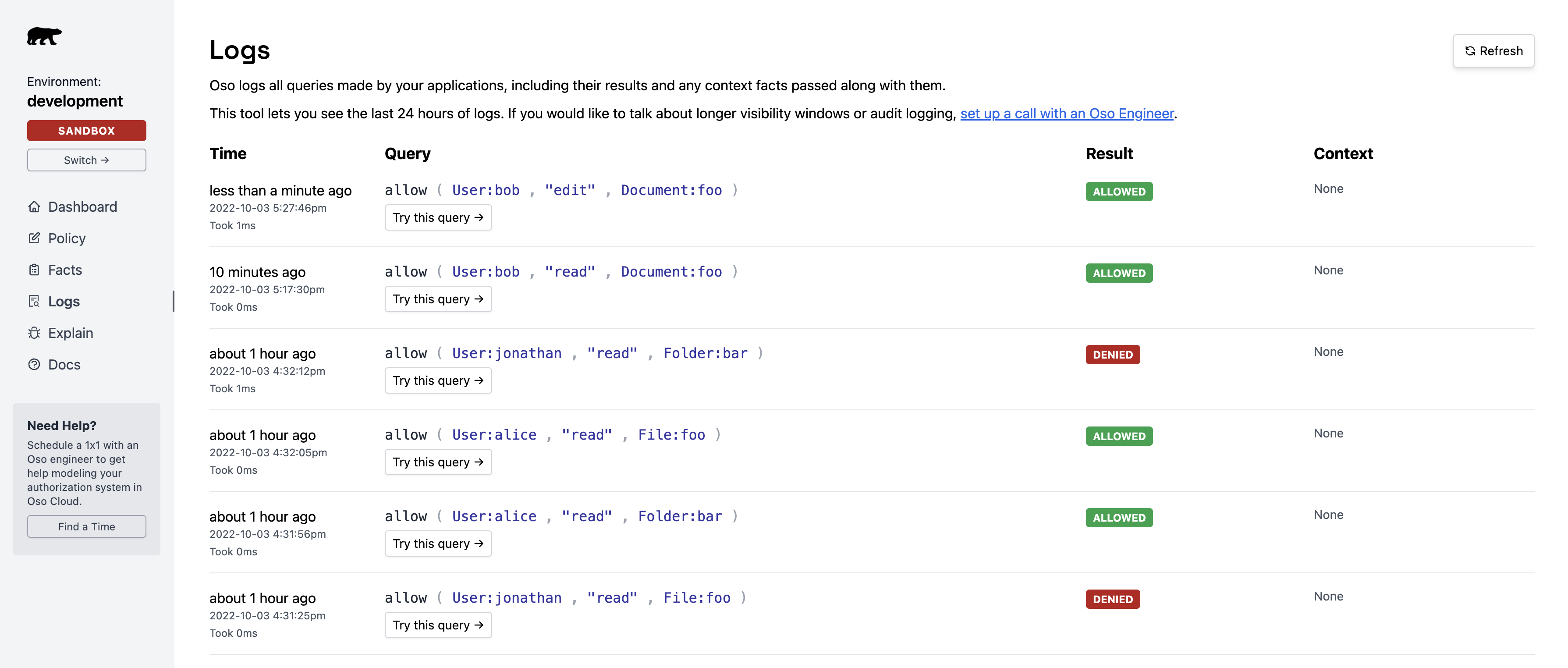
User:bob has edit and read permissions on Document:foo:

allowed: true — meaning the issue is in your authorization model, not your app code.
Step 2: Analyze with Explain
Use the Explain feature to understand why the authorization succeeded.- In the Logs page, click “Try this query” next to the unexpected result.
- This opens the Explain page and re-runs the query.

- The facts that contributed to the decision.
- The policy rules that matched.
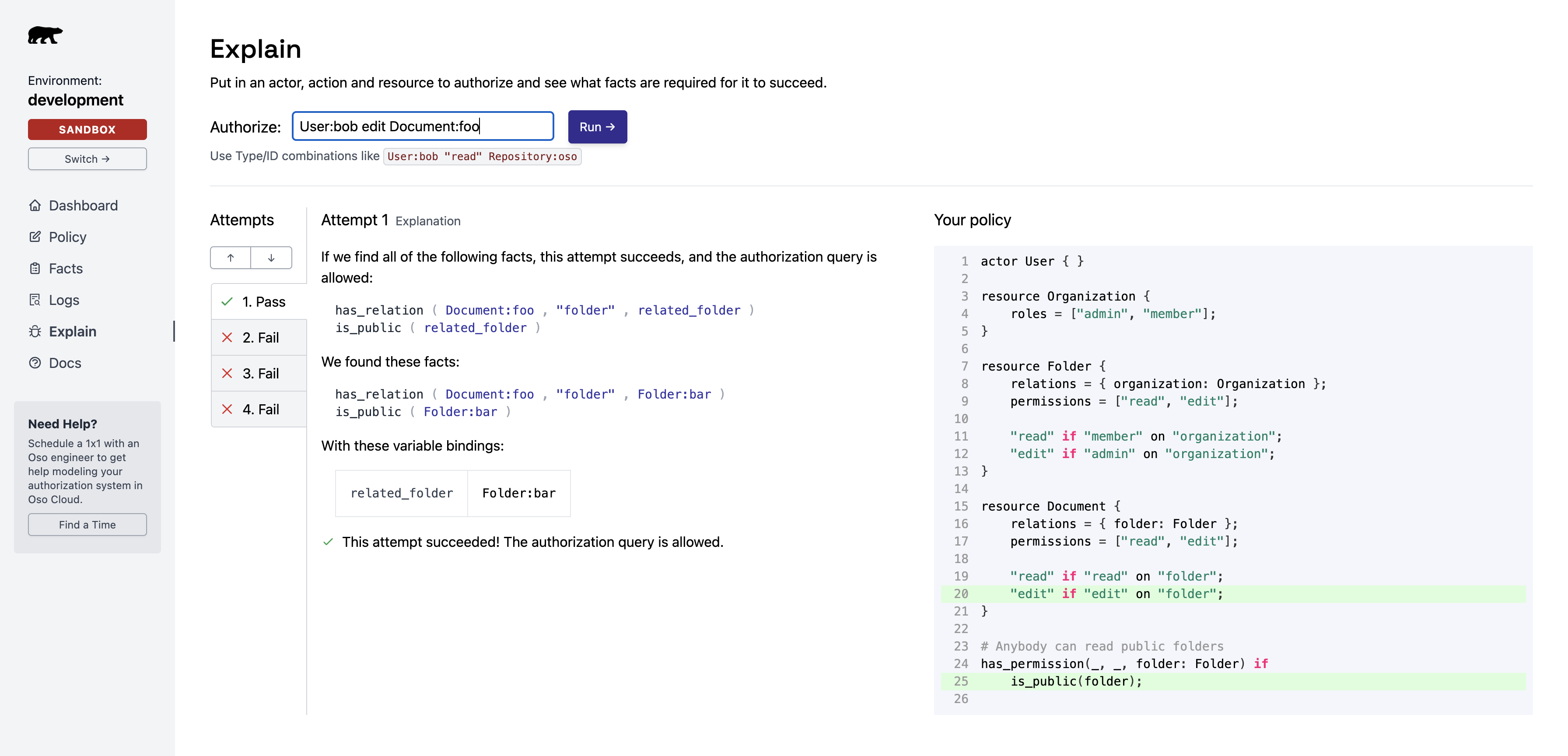
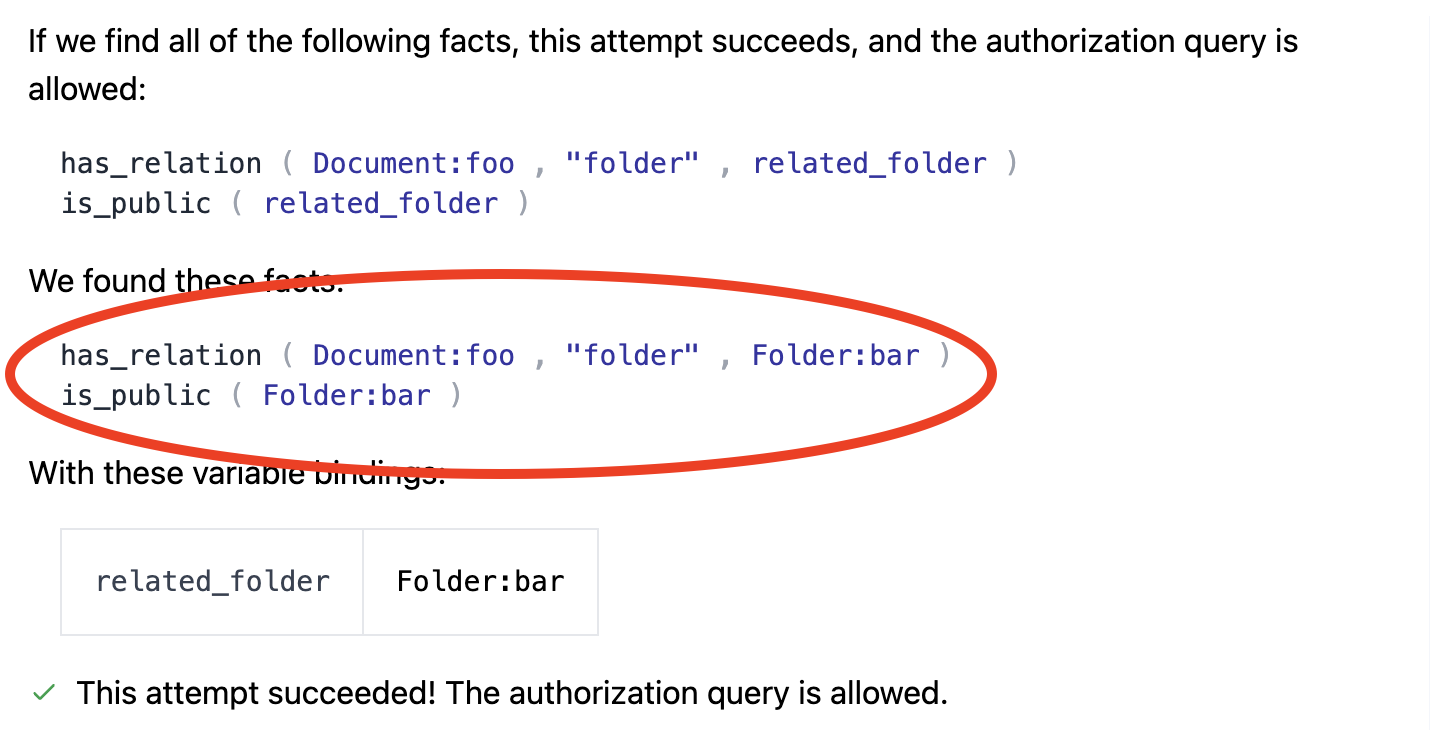
Review contributing facts
Two facts granted Bob edit access toDocument:foo:
Check policy rules
The policy rules on the right show which rules allowed the action: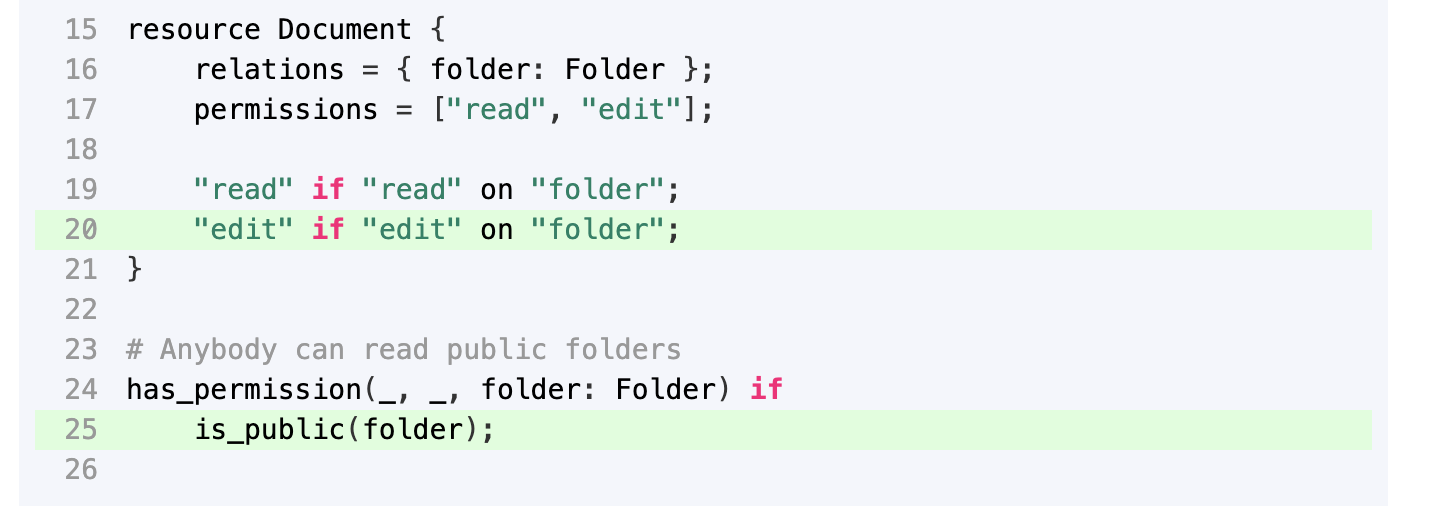
Identify the fix
Problem: Users can perform any action on public folders (due to the wildcard_).
Fix options:
- Change the rule to only allow
readactions on public folders - Remove the public flag from folder
bar
Debug denied access (false negatives)
For actions that should be allowed but are denied, Explain still helps. The left panel shows attempts to find a matching rule. Each attempt is one possible way to gain access.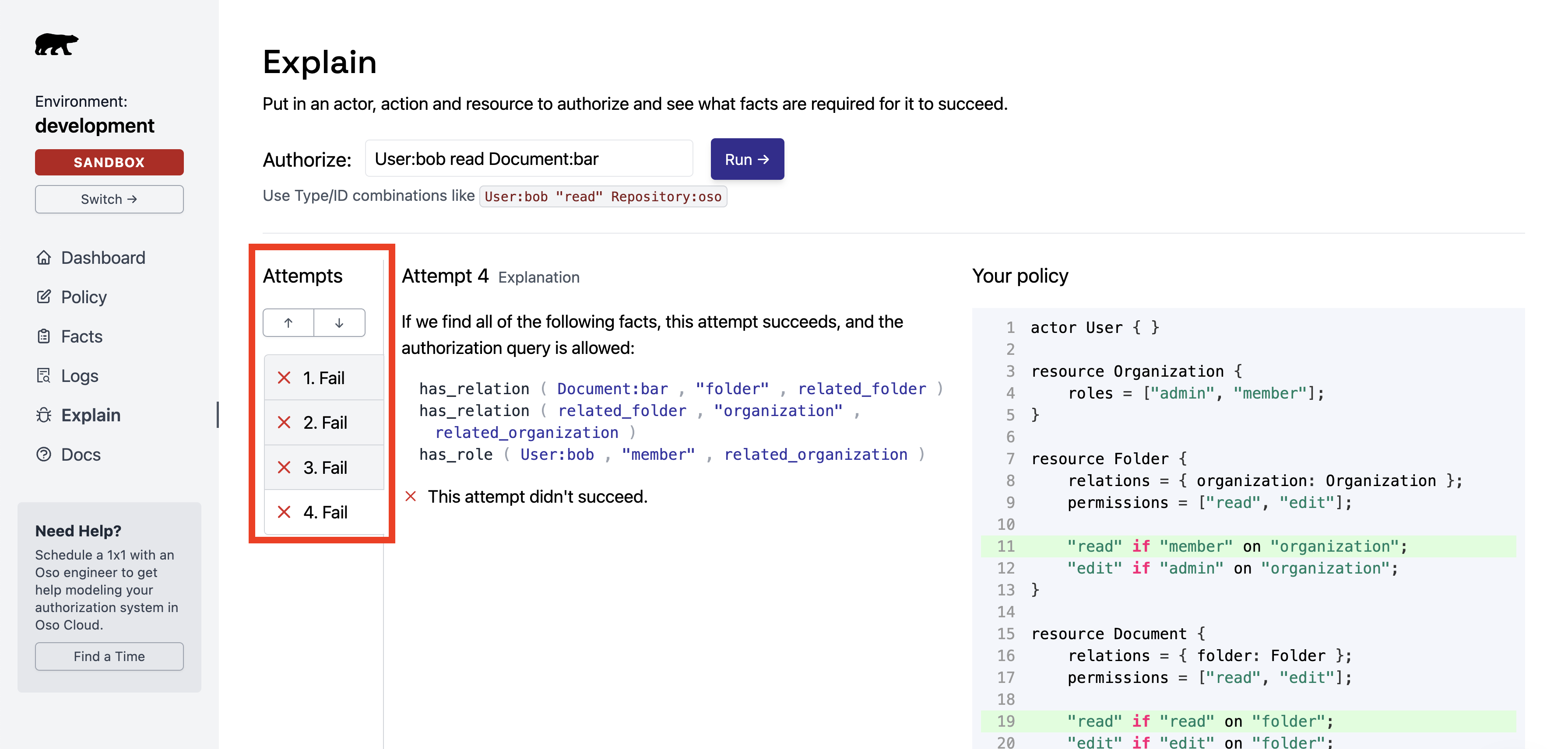
If the expected attempt appears
Cause: Required facts don’t exist in Oso Cloud. Check for:- Missing
.tell()calls in your backend. - Facts with incorrect arguments or formatting.