Recover your environment to a previous point in time
Oso Cloud provides point-in-time recovery for paid organizations to safeguard against accidental changes. Use this tool to restore the policy and facts in any environment to a specific state from the past 30 days—or from creation, if the environment is newer. To recover data older than 30 days, reach out via your support channel.
Note: This feature is only available for paid organizations.
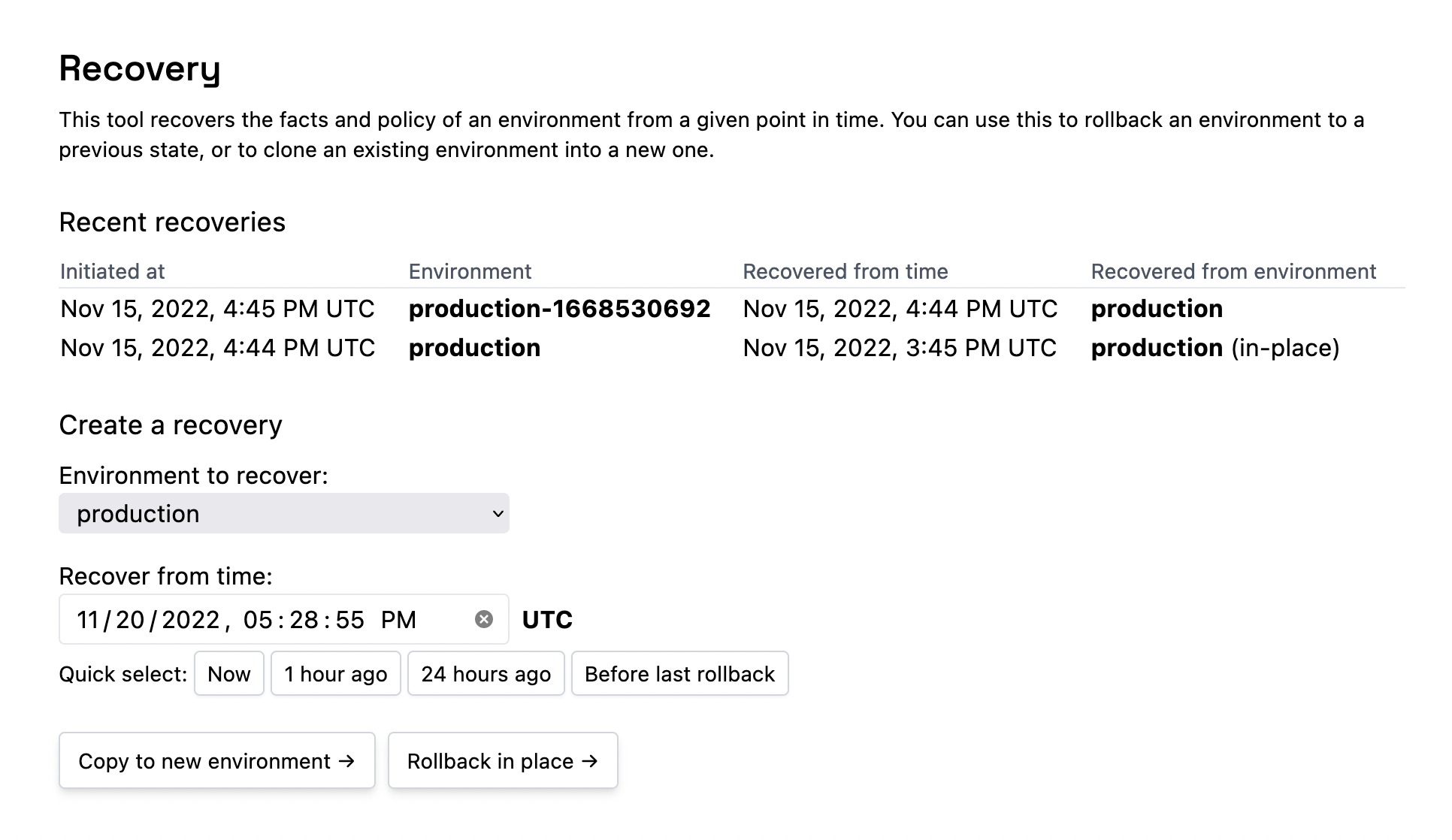
To create a recovery, navigate to the “Settings” page for your paid organization. Click on the “Recovery” tab. You’ll see a list of recent recoveries for environments in your organization.Click the “Create a recovery” button. Next, select the environment whose facts and policy you want to recover and the point in time you want to recover them from. You’ll have a choice of either copying the facts and policy into a new environment or rolling them back in place.
Recover into a new environment: Only the facts and policy from the point in time will be copied. Your new environment won’t have any API keys or logs. This option is most helpful if you need to investigate the state of an environment at some fixed point in time. (Note that you will not be able to select this option if your organization is at its environment limit.)
Rollback an environment in place: The policy and facts of the environment will be overwritten. The environment’s logs and API keys will not be affected by the rollback, any logs or API keys that existed before the rollback will remain. This option is most helpful if you’re trying to undo a catastrophic change to a traffic-serving environment (For example, if you have an integration that runs awry).
Important: After you confirm an in-place rollback, you will experience a brief period of unavailability while the rollback is being applied, during which you will not be able to read from or write to your environment.
In either case, after you confirm your choice and the recovery completes, you will be redirected to the recovered environment, and you’ll see your recovery in the list of recent recoveries in the “Recovery” settings tab.
Was this page helpful?
Assistant
Responses are generated using AI and may contain mistakes.